


App

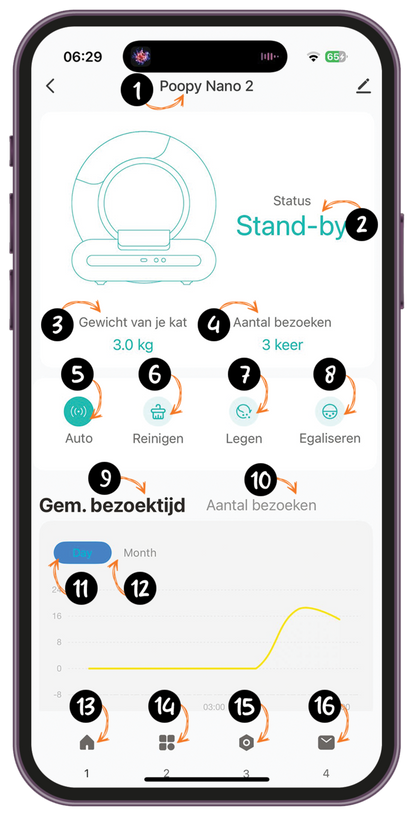
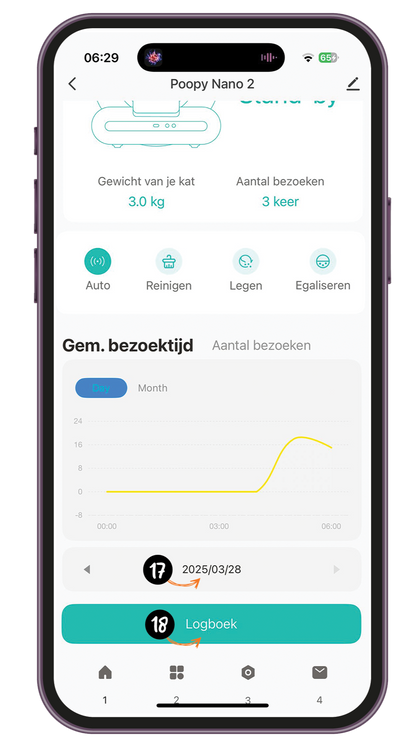
1. Poopy Nano

This is the name of the device you are operating via the app. Here you can see the model of the Poopy is connected. You can choose the name yourself by clicking on edit. If you have two Poopy, it is useful to choose a name yourself, for example: "Poopy Nano - Living Room" or "Poopy Nano - Bedroom."

2. Status Standby

The current status of the Poopy Nano . In standby mode, the litter box is not actively cleaning, emptying, or leveling and is ready for use. This means that the box is ready for the next time your cat uses it.

3. Weight of your cat (3.0 kg).

The recorded weight of your cat during its last visit to the Poopy Nano . This helps you track your cat's weight changes. If you have two cats, you can use the weight to see which cat visited the Poopy Nano .

4. Number of visits (3 times).

The number of times your cat has visited the litter box since the last reset or within a specific time period.

5. Car

Automatic mode of the Poopy Nano . When enabled, the litter box will automatically start cleaning after each use by your cat. When disabled, the litter box will NOT clean automatically. This is useful if, for example, you have a kitten that weighs less than 1 kg. By disabling this mode, the Poopy functions as a normal litter box.

6. Cleaning

This button manually starts a cleaning cycle. Useful if you want to have the litter box cleaned an extra time, separate from the automatic cycle.

7. Legen

This button starts a cycle to completely empty the bin, discharging all the grit to the Poopy Bag. This is useful when you want to replace the grit or clean the bin thoroughly.

8. Leveling

This button starts the leveling cycle. This ensures that the cat litter is neatly distributed in the bin. Handy to make sure the grit layer is even everywhere.

9. Average visiting time

The average time your cat spends in the Poopy Nano during each visit. This can provide insight into your cat's behavior.

10. Number of visits

The total number of times your cat has visited the litter box over a given time period, such as daily or monthly.

11. Day

Display of the Poopy Nano statistics for the day. Here you can view your cat's daily usage statistics.

12. Month

Display of the Poopy Nano statistics for the month. Here you can view your cat's monthly usage statistics.

13. Home page

This is the app's home page, where you can monitor the general status of the Poopy Nano and your cat's behavior at a glance. You can Poopy control the Poopy (remotely) from this page.

14. Settings page

The settings menu where you can adjust the most important settings of the Poopy Nano .

15. Advanced settings page

The advanced settings menu, where you can manage additional features and specific configurations of the Poopy Nano . You can also Poopy the Poopy via this menu.

16. Notification settings page

In the notification settings, you can choose which notifications you want to receive about the status of the Poopy Nano .

17. 2024/11/07

This is the date. You can edit it to view the activity of a desired day.

18. Log

The logbook keeps track of all Poopy Nano activities, such as cleaning cycles, visits by your cat, and any notifications or warnings. This gives you an overview of the litter box's usage and performance over time.

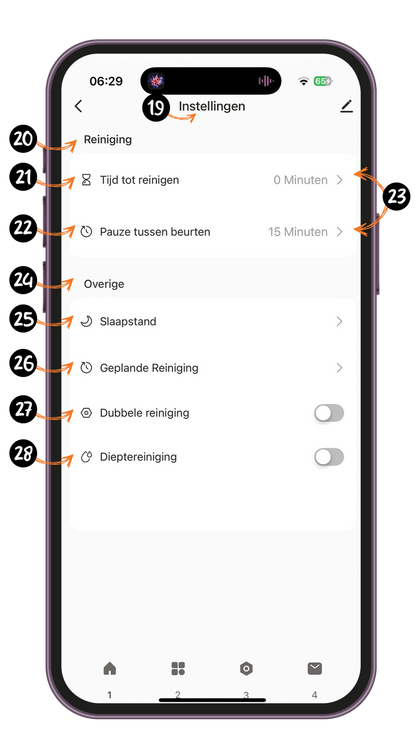
19. Settings

This is the first settings menu. Here you can adjust the Poopy Nano 's settings, such as cleaning time and other settings Poopy by Poopy .

20. Cleaning

Settings for the Poopy Nano cleaning function. Here you can set when the litter box should be cleaned automatically.

21. Time to clean

Set how long the Poopy Nano waits before automatically cleaning after your cat has used the litter box. This prevents cleaning from starting while your cat is still nearby. Do you want the Poopy to start cleaning Poopy ? Then set the time to 0 minutes. Prefer a slight delay? Then choose 1 to 2 minutes. We recommend setting it to 5 minutes, so that the cat litter has enough time to clump properly. This ensures that your Poopy works best.

22. Pause between turns

Here you set the minimum time between two consecutive cleaning cycles. This prevents the bin from cleaning again immediately, which is especially useful if you have several cats that use the bin shortly after each other. So you set this depending on the number of cats.

23. 0 minutes/15 minutes

These are the time options you can set for the "Time to clean" or the "Pause between turns." Choose the desired time to adjust the cleaning cycle to your preference.

24. Other

Additional settings offered by the Poopy Nano to further personalize the litter box's operation.

25. Hibernate

Sleep mode temporarily switches off the Poopy Nano so that it does not perform automatic cleaning during certain periods, such as at night. All functions are paused and the tray does not respond to cat behavior. Ideal for quiet environments, such as bedrooms or living rooms. After the set period, the Poopy resumes normal operation.

26. Scheduled cleaning(s).

This feature allows you to set fixed times at which the Poopy Nano automatically cleans. This is useful if you prefer to work with a fixed schedule—for example, in the morning and evening—rather than after each use. This keeps the litter box fresh, even if your cat uses it less often.

27. Double cleaning

Activates a double cleaning cycle after each visit from your cat, providing extra thorough cleaning. Ideal for when you want to keep your box extra clean.

28. Deep cleaning

Start a special cleaning cycle for extra thorough cleaning. The Poopy Nano first moves back and forth to bury the waste more effectively, followed by the normal cleaning cycle. This keeps the litter box even cleaner. We recommend using this setting in case of diarrhea.

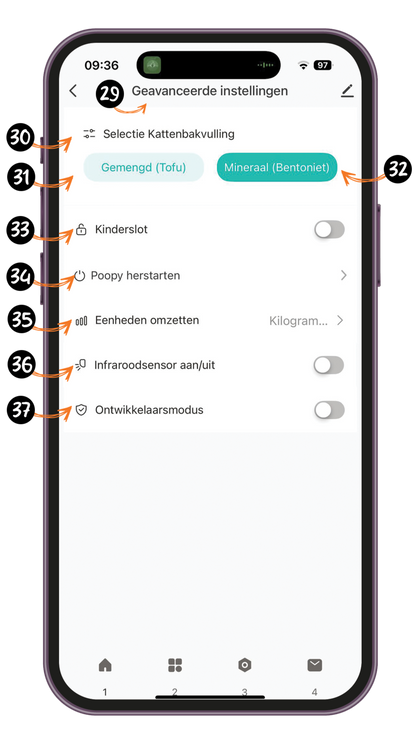
29. Advanced Settings

This menu offers additional settings for adjusting specific functions of the Poopy Nano . Here you can Poopy the Poopy and further customize the litter box to suit your preferences and those of your cat.

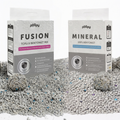
30. Selection cat litter

Select the type of cat litter you use so that the Poopy Nano can respond optimally. This ensures that the litter box works correctly with the litter you choose.

31. Mixed (Tofu)

Setting for mixed cat litter, such as tofu pellets. This type of filling has a different texture and weight than bentonite grit, and the Poopy adjusts its operation accordingly for optimal performance.

32. Mineral (Bentonite)

Setting for mineral cat litter, such as bentonite. The Poopy is optimized to handle this type of heavy, clumping litter efficiently and keep it clean.

33. Child lock

Activates the child lock on the Poopy Nano , locking the buttons to prevent unwanted operation by children or curious cats.

34. Poopy restart

This allows you to restart the Poopy Nano . This can be useful after adjusting certain settings or in the event of minor malfunctions. All settings will be retained, but the container will be reinitialized.

35. Converting units

Choose the desired unit for weight. For example, you can switch between kilograms and pounds for your cat's weight, depending on your preference.

36. Infrared sensor on/off

This is where you turn the infrared sensor on or off. For the best performance of the Poopy , we recommend leaving it off. The sensor was originally intended as an extra safety measure, but thanks to the accurate weight sensors, this is no longer necessary. If the infrared sensor is on, curious cat behavior can interfere with the operation of the litter box.

37. Developer mode

When you turn this on you will receive the function to set advanced data from the weight sensors.

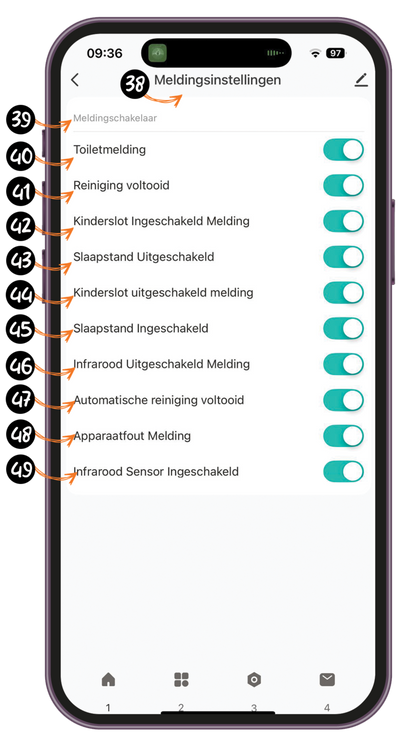
38. Notification settings

Here you can choose which notifications you want to receive about the status and use of the Poopy Nano . Customize the notifications to your preferences to stay informed about important updates.

39. Notification switch

Turn all notifications on or off with a single tap. This allows you to quickly pause or activate all notifications from the Poopy Nano .

40. Toilet notification

A notification indicating that your cat has visited the Poopy Nano and used the litter box. This keeps you informed of your cat's visiting behavior.

41. Cleaning Completed

A notification indicating that a manual cleaning cycle has been completed, so you know the bin is clean again.

42. Parental Lock Enabled Message

A message indicating that the child lock is enabled, so the buttons are locked to prevent unwanted operation.

43. Hibernation Disabled

A notification indicating that sleep mode has ended. The Poopy Nano will now automatically resume all its normal functions and perform cleaning cycles when necessary.

44. Parental Lock Disabled Message

A message indicating that the child lock has been disabled, allowing the buttons to be operated again.

45. Hibernation Enabled

A notification indicating that sleep mode has been activated. The Poopy Nano will temporarily stop all automatic functions and will not perform a cleaning cycle during the set sleep period. Once sleep mode is deactivated, the Poopy resume normal Poopy

46. Infrared Disabled Message

A message indicating that the infrared sensor is disabled.

47. Automatic Cleaning Completed

A notification indicating that an automatic cleaning cycle has been completed, so you know the bin is clean again.

48. Device Error Message

A warning that an error has occurred in the Poopy Nano . Please consult the app or contact customer service for assistance in resolving the issue.

49 Infrared Sensor Enabled

A message indicating that the infrared sensor is enabled.